This guide will walk you through installation notes, troubleshooting tips, and special features for installing your VHEDIA head unit into a Mitsubishi Triton 2018-2023 (MR, GSR).
Installation Video
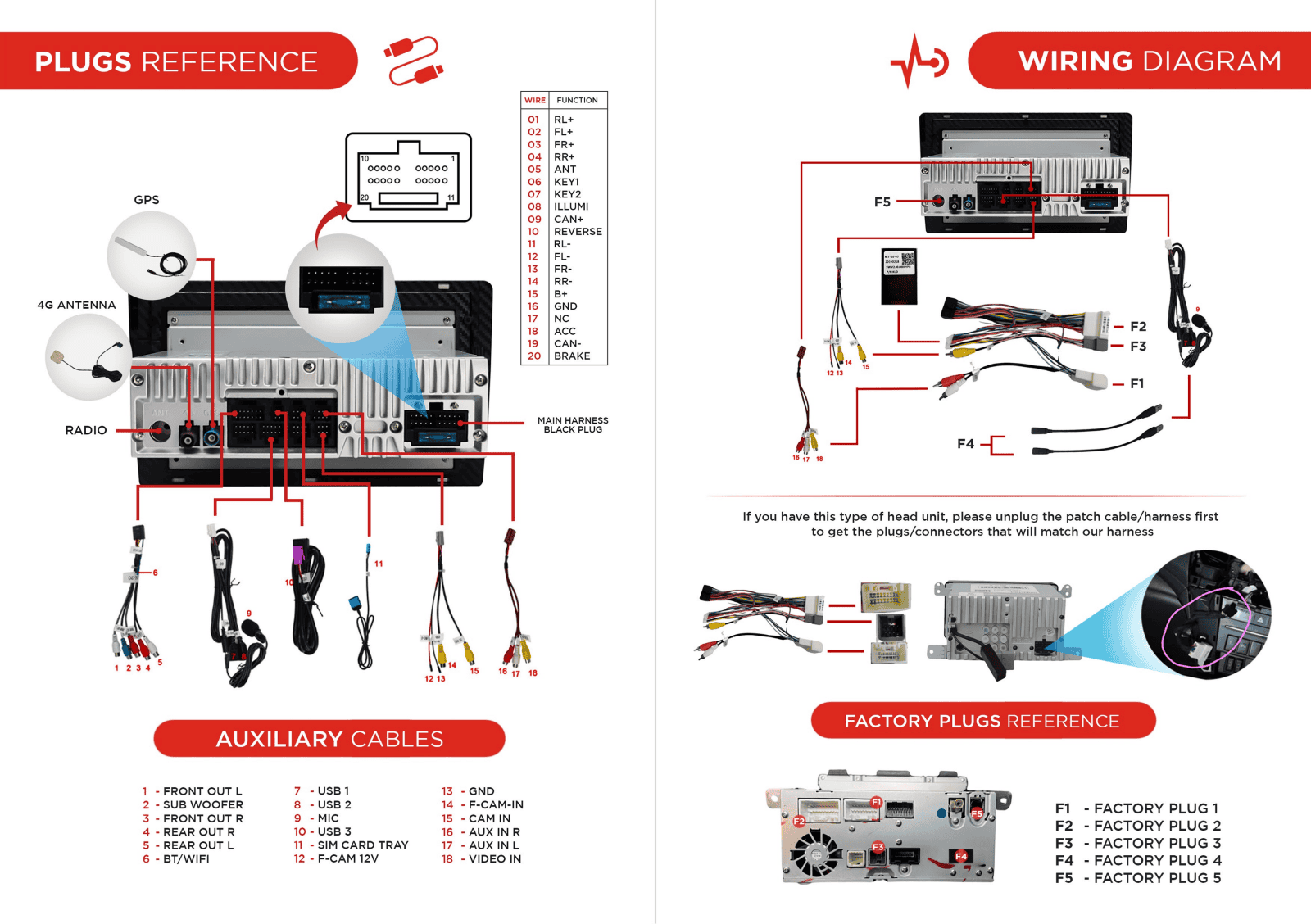
Which Wire Goes Where
Common Issues & Fixes
Showing How Factory 360 Camera Works
We now have the factory 360 camera on Mitsubishi's working fully and the steering wheel controls button will also work. These are 360 cameras on Tritons, Pajero Sport, and etc..
Speak/Mic Button from SWC (Steering Wheel Controls) Not Working?
We recently rolled an APK to fix this issue. Follow these steps:
Steps:
Download and unzip: https://vhedia.com.au/wp-content/uploads/2023/11/Ts8667_user_kld006_377_1280x720-release-unsigned_sign.apk_.zip
Copy the unzipped file to a USB flash drive formatted as FAT32.
Next:
Insert USB flash drive preferably into the 3G USB cable port.
Go to your apps (bottom of screen 9 pin pad).
Select File Browser.
Under the Flash Icon select the USB flash drive with your file on it. If you don't have anything else plugged into a USB port, you should just see USB 1. If you have dash cam, DAB, and etc.. You will have a couple of different USB.
Scroll down under you see the file name and tick the box on the right side of the file name. Select the paper symbol next to the scissors to copy the file.
Select the Flash icon on the top left of the screen and then press the paper symbol again at the bottom to paste. Your file will start to transfer over.
Test on your Triton if this has worked.
Insert USB flash drive preferably into the 3G USB cable port.
Bring up your apps screen by pressing the 4 square pad on the bottom left of your screen.
Select File Manager.
Under the Local Icon select the USB with your file on it. If you don't have anything else plugged into a USB port, you should just see USB 1. If you have dash cam, DAB, and etc.. You will have a couple of different USB.
Scroll down under you see the file name and select the file name.
It will come up with a prompt asking if you want to install, select Install and after select Done.
Test on your Triton if this has worked.
Poor Mic Quality Issue
Set the Volume
Settings > Car infotainment > Volume > BT call volume gain > Set to your preference.
Settings > Car infotainment > About Device > Tap the "Tools" icon > Enter code 8878 to factory setting > Volume > BT mic gain / BT Vol > Set to your preference > Test results.
Mitsubishi Control Settings
This will fix the Engine, AC, ABS, and Traction lights coming on after installing the head unit.
If ever you encounter issues like Engine, AC, ABS, and Traction lights coming on, Speedo dropping to 0 while driving, or any factory functions on your Mitsubishi that are not working correctly after installing the head unit. You may follow the video below to fix the issue.
For X-Series:
For M-Series:
FAQs
Got questions about upgrading your Mitsubishi Triton’s infotainment system? In this video below, we answer the most frequently asked questions about the Vhedia Head Unit for the Triton 2018-2023 models. Whether you're wondering about installation, compatibility, features, or troubleshooting tips, we’ve got you covered!
Need further assistance? Reach us out on our support channels:
Live Chat on our website (https://vhedia.com.au/): Mon–Fri, 7 AM–5 PM (Perth time)
Phone Support: 1800 577 415, Mon–Fri, 7 AM–3 PM (Perth time)
Email: hey@vhedia.com.au