
This guide will walk you through installation notes, troubleshooting tips, and special features for installing your VHEDIA head unit into a Volkswagen Amarok 2011-2016.
Installation Video
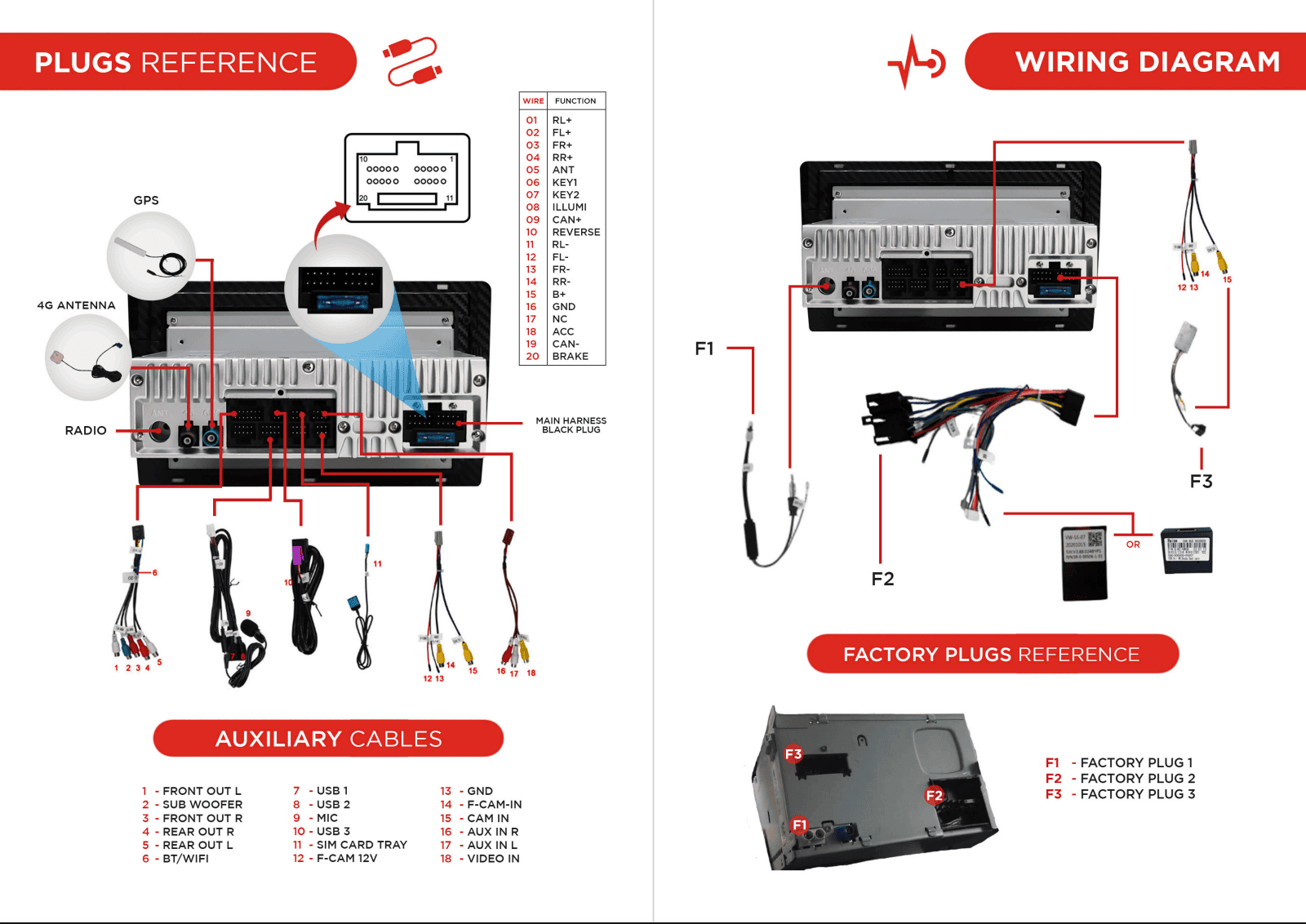
Which Wire Goes Where
Common Issues & Fixes
Reverse Camera Works On ACC But Not When Car Is Started
You need to use the relay cable in our kit. See reference pictures below:
Black Wire (GND) - Connect with the black GND wire from main 20-pin harness
Red Wire and Yellow Wire - Connect with the orange/black reverse-in wire from main 20-pin harness
White Wire - Connect with your car reverse light, there is 12v when the gear is on reverse or by the 12v trigger of your aftermarket camera


If this cable is not in your kit, let us know via email, live chat, or phone to get it sorted for you.
You can also use a camera filter like the one below:

Here's how to wire the camera filter included in the kit:
1. OUT - Connect the cables (RED and BLACK) to the video cable of the reverse camera accordingly.
RED > RED
BLACK > BLACK
2. IN - Connect the BLACK cable to the ground and the RED cable to the positive circuit of the reverse light.
Refer to the diagram and picture below for reference:


Factory Camera Settings
Blinking Dash Lights
If you're facing instances of A/C lights and other dashboard lights flickering, along with dashboard buttons not responding to touches, here's how you can fix it:
Check what CANBUS code you have. MT-9613AM normally have two CANBUS:
VW-SS-07
RZ-VW58
Set the proper CANBUS setting:
Go to Settings
Tap Car Infotainment
Tap About Device
Tap the gear icon and enter 8878 for the password
Select CAN TYPE.
Tap the text field on top. If you have VW-SS-07, set it to 240. Meanwhile, set it to 1 or 2 if you have the RZ-VW58.
Tap Save > OK > Reboot
VIDEO GUIDE:
Dual Fakra Adapter
See on how to wire the Dual Fakra Adapter on your Vhedia head unit.
Wiring Instructions

"No Signal" Issue On Factory Reverse Camera
Please make sure that the CANBUS SM plugs are hooked up properly so it’s drawing power from the vehicle.

Need further assistance? Reach us out on our support channels:
Live Chat on our website (https://vhedia.com.au/): Mon–Fri, 7 AM–5 PM (Perth time)
Phone Support: 1800 577 415, Mon–Fri, 7 AM–3 PM (Perth time)
Email: hey@vhedia.com.au